README Examples and Templates
Pick one of eight complete README.md examples, fill in your name and project, then copy or download it.
README.md files you can copy and adapt. Each one is a ready-to-edit README template for GitHub or any Markdown project: a library, a command-line tool, a web application, a REST API, a data science project, a school assignment, a GitHub profile or a minimal layout. Pick one, type your project name, GitHub user, author, year and license, and every placeholder updates at once. Use the result as a sample README file to learn the structure, or as a starting point for your own. The templates were written for this site and everything runs in your browser. Nothing you type is uploaded, the tool is free, and there is no sign-up.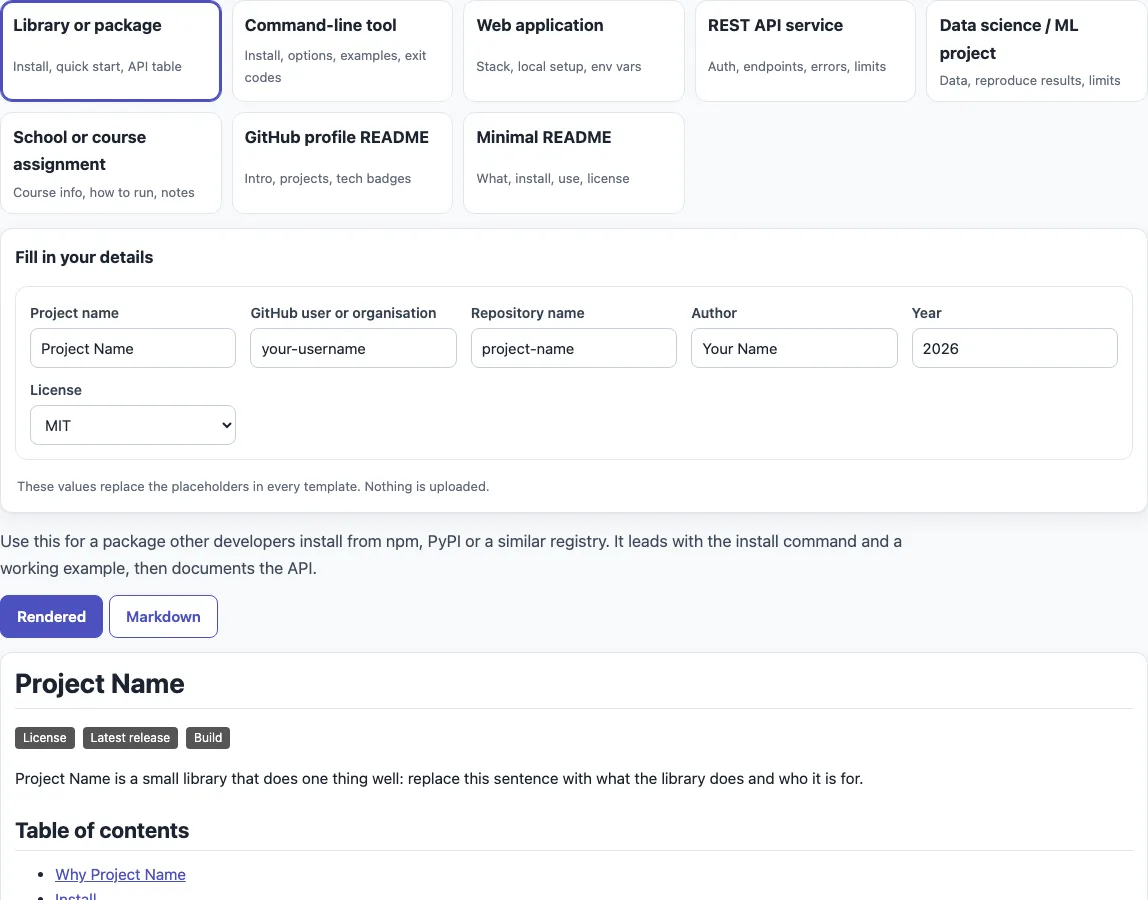
How to use the README template gallery
- Choose a card. The default is “Library or package”. Clicking a card changes the address, so you can share a link to that template.
- Read the note under the cards. It says when the selected template fits.
- Fill in the details under “Fill in your details”: “Project name”, “GitHub user or organisation”, “Repository name”, “Author”, “Year” and “License”. An empty field falls back to its default.
- Pick a license in the “License” list. MIT is the default. The other choices are Apache-2.0, GPL-3.0-only, BSD-3-Clause, MPL-2.0, ISC, Unlicense and “Proprietary / all rights reserved”.
- Use the view buttons. “Rendered” shows the file as it will look on GitHub, with images as placeholders. “Markdown” shows the raw text.
- Switch to “Markdown”, then press “Copy” or “Download” to save the text as
README.md. The two buttons appear only in that view.
You can also open a template directly with ?t= after the address: ?t=library, ?t=cli, ?t=webapp, ?t=api, ?t=datascience, ?t=assignment, ?t=profile or ?t=minimal. A few aliases such as ?t=rest and ?t=ml also work. Then replace every remaining default, such as “Your Name”, and any sentence that still says to replace it, before you publish. Save the file as README.md in the root of your repository.
What is a README file?
A README file is the first document a reader sees about a project. It is usually named README.md and written in Markdown, a plain-text format where # makes a heading and [text](url) makes a link. GitHub shows it on the repository’s front page.
A good README answers a few questions in order: what the project does, who it is for, how to install it and how to use it. Put a one-sentence description near the top, because readers decide quickly whether a project fits. Reference material such as full option lists or API tables can come later.
Which README template should I use?
Start with what your project is. A reusable code library fits “Library or package”: badges, install, a quick start and an API table. A program you run in a terminal fits “Command-line tool”: usage, an options table, examples and exit codes. “Web application” lists the stack and environment variables. “REST API service” covers authentication, endpoints, errors and rate limits. “Data science / ML project” puts results first, then data and reproduction steps. “School or course assignment” states how to run the program and what does not work yet. “GitHub profile README” is a short personal page, and “Minimal README” is one screen.
Delete any section that does not apply. An empty section with placeholder text confuses readers more than a missing one. The library, command-line, web application, REST API and data science templates pass all 12 checks of the README checker on this site.
What does a sample README file look like?
A sample README file for a library starts with the title # Lumen Notes, three badges, a one-sentence description and a table of contents. Below that come the sections “Why”, “Install” with npm install lumen-notes, “Quick start” with a short code block, an “API” table, “Compatibility”, “Contributing” and “License”. The other seven templates follow the same idea with sections that suit their project type.
Where does GitHub look for a README?
GitHub shows the README from the .github folder first, then the repository root, then docs. It builds an Outline menu from your headings, and content beyond 500 KiB is truncated, so move long guides into docs. A link that starts with / points to the repository root, and relative links and image paths resolve for the current branch.
Sources (checked 13 October 2026): About READMEs (GitHub Docs), Managing your profile README (GitHub Docs)
Frequently asked questions
Where do I put the README?
Place README.md in the root folder of your project, next to the main code. GitHub looks in .github first, then the root, then docs, and shows the first match. Keep a single README in the root unless you have a specific reason not to.
Is README.md the same as readme md?
Yes. “readme md” is how people often type the search, and .md is the Markdown file extension. Name the file README.md, with capital letters, which is the common convention.
Where does a GitHub profile README go?
Create a public repository named exactly like your GitHub user name and add a README.md at its root. GitHub shows that file on your profile page. The “GitHub profile README” template is written for this.
Can I use these templates commercially?
Yes. The text can be used for any purpose, including commercial and client work, royalty-free and with no attribution. The only limit is that you may not copy this website or the tool as a competing service.
Does the tool store what I type in the fields?
No. Nothing is uploaded and the fields are not saved, so they reset when you reload the page.
What happens if I leave a field empty?
It falls back to its default: “Project Name” for the project, “your-username” for the user, “project-name” for the repository, “Your Name” for the author, the current year, and MIT. Replace these before you publish.
Related tools
- README generator — when you want to build a README step by step from your project details.
- How to write a README — when you want to check a finished README against 12 common requirements.
- GitHub README badge generator — when you need badges for license, release or build status.
- Changelog template — when you want to start a
CHANGELOG.mdin the Keep a Changelog format. - Markdown table generator — when your README needs an options, endpoint or API table.
- Markdown editor — when you want to edit and preview Markdown in one place.
- API documentation template — when your project is a REST API and needs fuller documentation than a README section.