README Generator
Fill in your project name, description and the sections you need, and get a ready-to-commit README.md with badges, install commands and a table of contents, updated as you type.
README.md file for your project from a short form. You fill in the project name, a description and the sections you want, and the Markdown builds as you type, ready to copy or download. It works as a GitHub README generator, but the output is plain Markdown, so it suits an npm or PyPI package, a Docker image or any project folder. The page opens with a filled-in example project, Tidybox, a file-sorting command-line tool, so you can see a finished result straight away. Everything runs in your browser, nothing you type is uploaded, and it is free with no sign-up.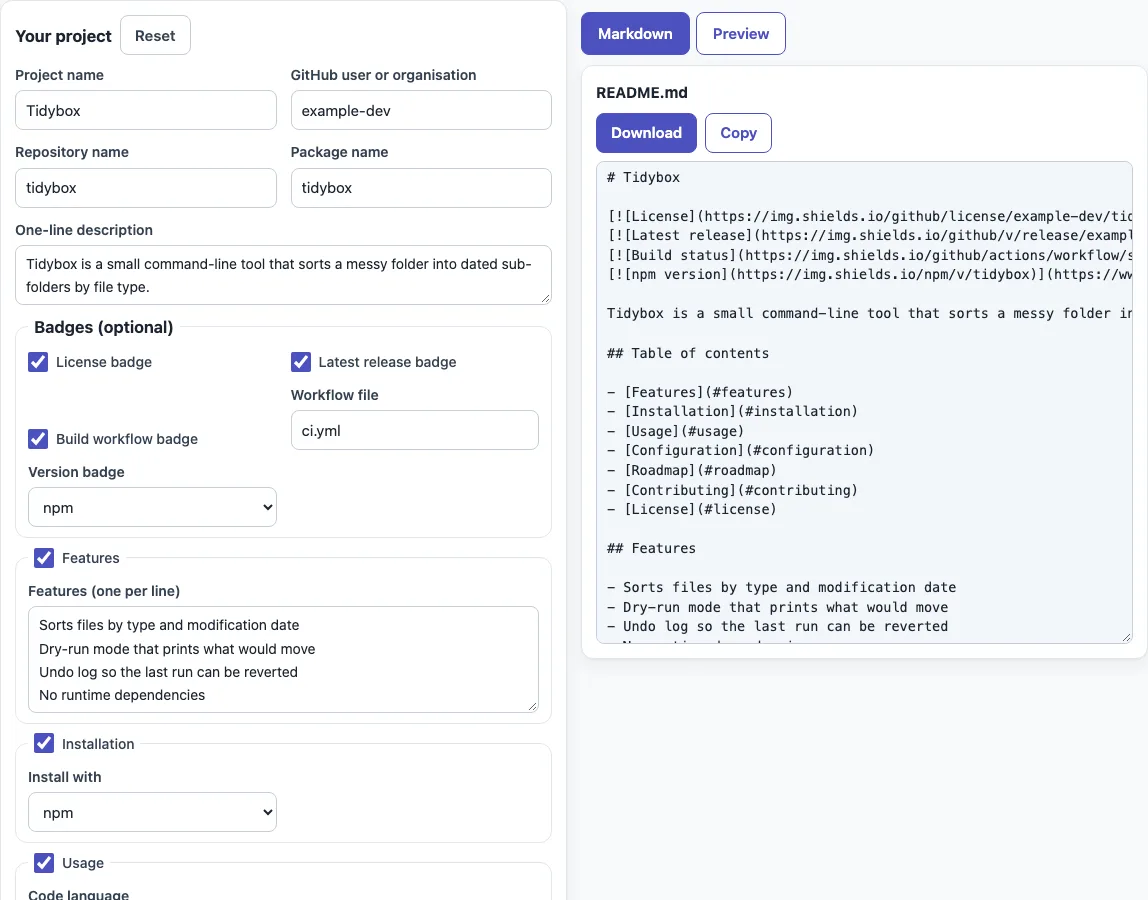
How to use the README generator
- Start with the example. Replace the values in “Project name”, “GitHub user or organisation”, “Repository name”, “Package name” and “One-line description”.
- Under “Badges (optional)”, keep or switch off “License badge”, “Latest release badge” and “Build workflow badge”. For the build badge, enter your workflow file name in “Workflow file” (the default is
ci.yml). In “Version badge”, pick “None”, “npm” or “PyPI”. - Turn sections on or off with their checkboxes. Features, Installation, Usage, Configuration, Roadmap, Contributing and License are on by default. Screenshots, “Authors and acknowledgments” and Contact are off.
- Fill in each section’s fields. For Installation, choose an option in “Install with”, or choose “From source (git clone)” and then pick a build step in “Then build with”.
- In the License section, pick a license and enter the author or copyright holder and the year.
- Read the result in the “Markdown” tab, which updates as you type. Press “Copy”, or press “Download” to save the file as
README.md. - Open the “Preview” tab to see the rendered page. Images appear as labelled placeholders.
Your answers are saved in this browser and come back on your next visit. “Reset” returns you to the Tidybox example. After you download the file, put README.md in the root of your repository and commit it.
What goes in a README?
A README is the first document a visitor reads about your project. It says what the project does, how to install it, how to use it, and where to get help. The tool offers ten sections in a fixed order: Features, Installation, Usage, Configuration, Screenshots, Roadmap, Contributing, License, “Authors and acknowledgments” and Contact. Switch off any section your project does not need.
Keep each section short and specific. Features is a bullet list. Usage shows one or two real commands in a code block, in the language you pick under “Code language”. Configuration is a table of options, defaults and descriptions: type one option per line as name | default | description. In Roadmap, start a line with [x] to show it as a finished task; any other line becomes an open task. Leave Contributing empty and the tool writes a standard paragraph that invites issues and pull requests.
Can I generate a README for GitHub?
Yes. The output is Markdown with GitHub Flavored Markdown tables and task lists, so it displays correctly once you commit it as README.md. GitHub shows the README it finds in the .github folder first, then the repository root, then docs, so the root is the usual place. GitHub also builds an outline from your headings, and content beyond 500 KiB is truncated.
Does it add a table of contents?
Yes, when 4 or more sections are switched on. The heading is “Table of contents”, and each link uses a GitHub-style anchor: lower case, punctuation removed, spaces replaced with hyphens. If you switch off sections until fewer than 4 remain, the table is left out.
Which install commands does it support?
The “Install with” select offers 11 choices: npm (npm install tidybox), Yarn (yarn add tidybox), pnpm (pnpm add tidybox), pip (pip install tidybox), Cargo (cargo add tidybox), go install, Composer, RubyGems (gem install tidybox), Homebrew (brew install tidybox), Docker (docker pull example-dev/tidybox) and “From source (git clone)”.
For go install, a package name containing . or / is used as it is; otherwise the tool writes github.com/<user>/<package>@latest. Composer needs vendor/name, and an existing vendor/name is kept. “From source (git clone)” writes git clone and cd, then a second block chosen by “Then build with”, such as npm install, pip install . or cargo build --release.
Sources (checked 13 October 2026): About READMEs (GitHub Docs), GitHub Flavored Markdown spec, Shields.io
Frequently asked questions
Is the README uploaded anywhere?
No. The tool runs in your browser, and nothing you type is uploaded. Your answers stay in this browser’s storage. Use “Download” to save the file to your own computer.
Can I use the generated README for commercial work?
Yes. What the tool produces can be used for any purpose, including commercial and client work. It is royalty-free and needs no attribution. The only limit is that you may not copy the website or the tool itself as a competing service.
Does the tool create a LICENSE file?
No. The License section adds a sentence that points to a LICENSE file, and the license badge links to that file. You need to add the LICENSE file to your repository yourself. If you choose “Proprietary / all rights reserved”, the text reads “All rights reserved” instead.
Will my answers still be there when I come back?
Yes. They are saved in this browser and restored on your next visit. Press “Reset” to go back to the Tidybox example.
How do I get the badges at the top of the README?
They come from the “Badges (optional)” group. Each badge is an image link from shields.io that points to your license file, releases page, Actions workflow, npm page or PyPI page. The build badge appears only when “Workflow file” is not empty.
Related tools
- README examples and templates — when you want a starting layout to adapt by hand.
- How to write a README — when you want to check a README you have already written.
- GitHub README badge generator — when you need badges without the full README.
- Changelog template — when you want to start a
CHANGELOG.mdin the Keep a Changelog format. - Markdown table generator — when you need a table for a document other than the README.
- Markdown editor — when you want to edit and preview any Markdown text.
- API documentation template — when your project has an API that needs its own documentation.