Mermaid Markdown Previewer
Paste a Markdown document with mermaid code blocks to see it rendered with its diagrams, check each diagram for errors, and download any diagram as SVG or PNG.
mermaid code blocks into the box on the left, and the rendered document appears on the right with each diagram drawn in place. A table lists every block with its line number, diagram type and status, including Mermaid’s error message when a diagram fails. It suits any Markdown Mermaid check, from one diagram in a README to a long document with many. The tool uses Mermaid 11.6 and reads both backtick and tilde fences. Everything runs in your browser: nothing you type is uploaded, and there is no sign-up.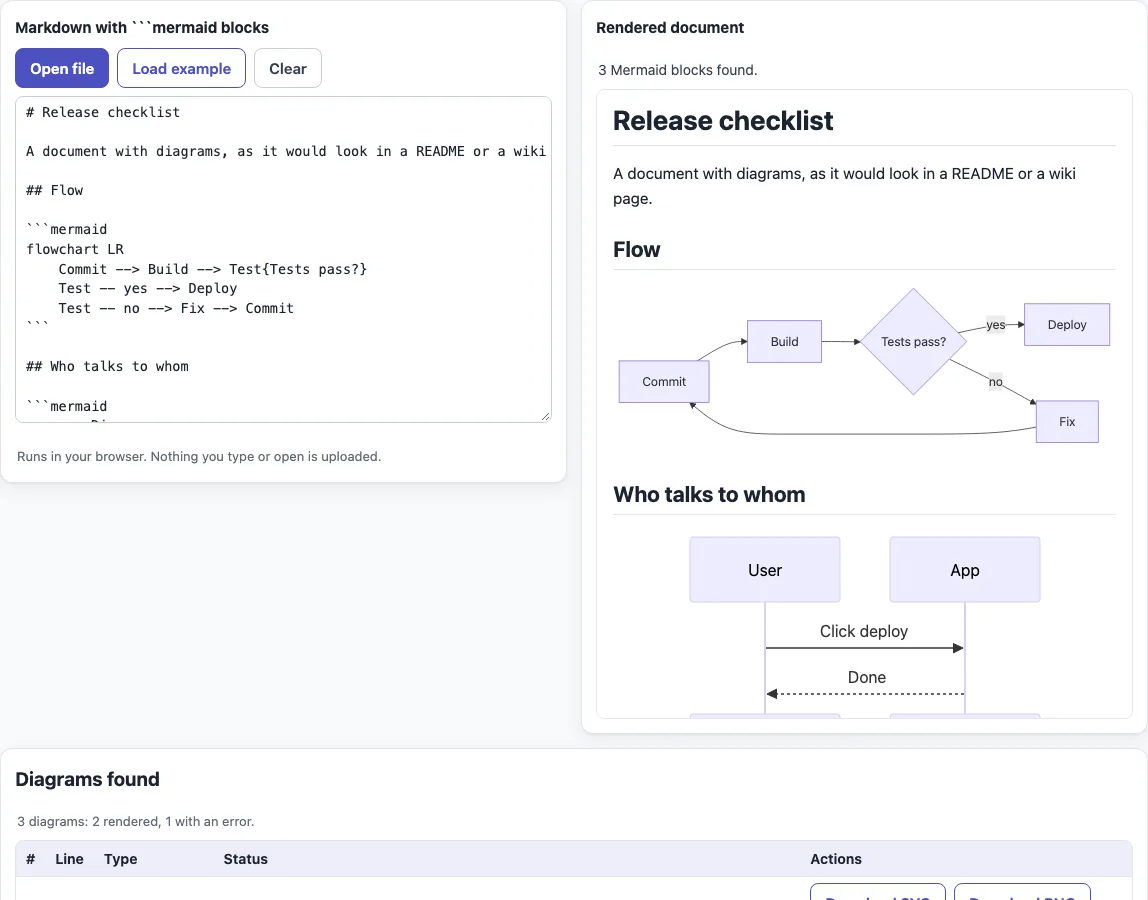
How to preview Mermaid in Markdown
- Paste your Markdown into the box labeled
Markdown with ```mermaid blocks, click “Open file”, or drop a file onto the box. The page starts with a sample release checklist: two working diagrams and one with a typo in the diagram type. “Load example” brings the sample back. - Read the line “N Mermaid blocks found.” above the rendered document on the right. A working diagram is drawn in place; a broken one shows its error in a red box.
- Scroll to the “Diagrams found” table. Each row is one block, with its number, the “Line” of its opening fence, its “Type” and its “Status”: OK, or “Error:” followed by Mermaid’s message.
- If a row shows an error, find that block in the left box, fix the code, and watch the status change.
- In any row, click “Download SVG”, “Download PNG” or “Copy code”. The files are named
diagram-1.svg,diagram-2.pngand so on, using the block number. - If you have only diagram code and no fence, paste it into the “Wrap diagram code in a Markdown fence” box. Use “Copy” or “Download” to take the result; the download is named
diagram.md.
“Clear” empties the left box. To print the rendered document, use your browser’s print command.
How do I add a Mermaid diagram to Markdown?
Put the diagram code between an opening fence whose first word is mermaid and a closing fence. The first line of the code sets the diagram type, such as flowchart LR or pie.
```mermaid
flowchart LR
  A[Draft] --> B[Review]
  B --> C[Publish]
```
Both backtick and tilde fences work, and the word mermaid is matched without regard to case. A fence may be indented, and the indentation is removed from the code; a fence inside a block quote also works. Blocks in other languages are ignored. The diagram type is read from the first line after any frontmatter, comments and %%{ }%% directives. If your diagram contains three backticks, use a longer outer fence, because a fence closes only on an equal or longer one. This page reads fenced blocks only, so the ::: mermaid container used by some wikis does not render here.
Inside the diagram, YAML frontmatter between --- lines can set a title or configuration, and a line starting with %% is a comment that Mermaid ignores. Keep curly braces out of comments, because they can confuse the parser.
Why is my Mermaid diagram not showing?
Start with the “Status” column. It shows OK, an error line that also appears in a red box in the rendered document, or “(fence not closed)”. The “Line” column tells you where the block starts. Three causes explain most failures:
- Missing closing fence. A fence that never closes runs to the end of the document, so everything below it is read as diagram code.
- Typo in the diagram type. The first line must name a type Mermaid knows. A misspelled word such as
flowchar LRproduces an error, as in the sample. - Wrong label. Only the first word of the opening fence is matched, so it must be
mermaidwith nothing before it.
Fix one block at a time from the first error down, since an unclosed fence can disturb the blocks after it.
Sources (checked 13 October 2026): Mermaid syntax reference, GitHub: creating diagrams, GitLab Flavored Markdown, Azure DevOps wiki Markdown guidance, Obsidian advanced syntax, VS Code Markdown.
Frequently asked questions
Which sites render a mermaid block?
GitHub renders Mermaid diagrams in issues, discussions, pull requests, wikis and Markdown files when the code sits in a fenced block with the mermaid identifier. GitLab does the same and says it supports Mermaid version 11. On GitHub, putting info inside a mermaid block shows which Mermaid version it uses.
Do wikis and editors render Mermaid too?
Yes, with different limits. The Azure DevOps wiki accepts a fenced block or a ::: mermaid container, but its syntax support is limited: use graph instead of flowchart and avoid long arrows such as ---->. Obsidian renders a code block labeled mermaid, and the built-in Markdown preview in VS Code renders mermaid fences.
Why do diagrams fail silently on a self-managed server?
On GitLab Self-Managed, a Cross-Origin-Resource-Policy header set to same-site or same-origin makes diagrams fail without a message. Set it to cross-origin.
Can I save a diagram from my Markdown as an image?
Yes. Each row in the “Diagrams found” table has “Download SVG” and “Download PNG” buttons, and the files are named by block number.
Will a diagram that works here look the same elsewhere?
Not always. This page renders with Mermaid 11.6, and other platforms may run other versions, so check the diagram where you publish it.
Is my Markdown uploaded when I use this tool?
No. The document is rendered locally in your browser, and the HTML is sanitized. The only file loaded is Mermaid 11.6 from this site.
Related tools
- Mermaid diagram editor — write and check a diagram before placing it in a Markdown file.
- Mermaid flowchart maker — build a process or decision diagram from a form.
- Mermaid sequence diagram maker — show messages passing between people or systems.
- Mermaid class diagram maker — map classes, their fields and the links between them.
- Mermaid cheat sheet — look up diagram keywords while you write.
- Markdown editor — write and preview Markdown documents with other content.
- Markdown cheat sheet — look up headings, lists and code fences.