Markdown File Viewer and Reader
Open or drop a .md file and read it as a clean page with a contents list. Several files at once, reading themes, print and HTML export.
.md, .markdown, .mdown, .mkd and .txt files. When you only want a clean, readable page and not an editor, this is the quickest way to get one.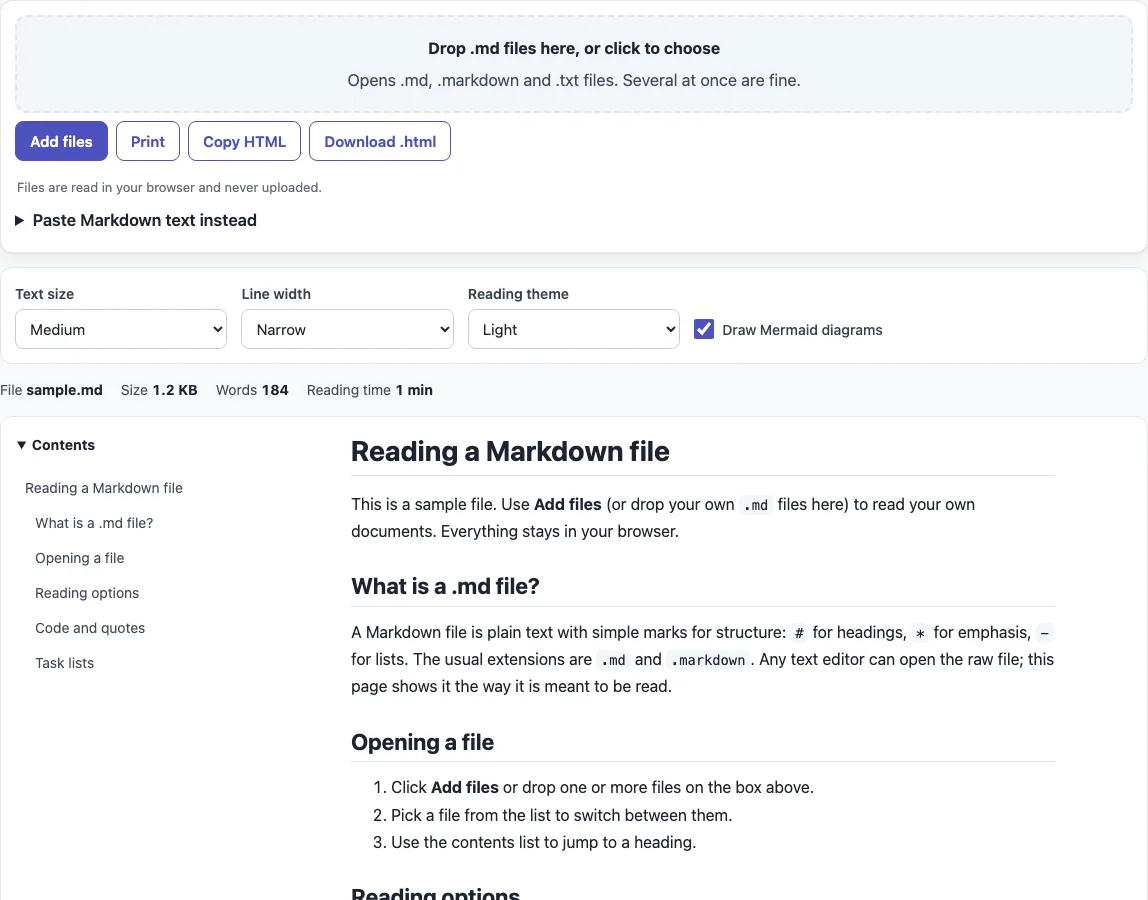
How to use the Markdown viewer
- Click the drop box (“Drop .md files here, or click to choose”) or “Add files”, or drop files on the box or on the reading area. You can select several files at once. Files over 8 MB or with binary content are skipped with a message.
- To read text you have copied, open “Paste Markdown text instead” (collapsed by default), paste your text and click “Show pasted text”. It is added to the file list as
pasted-1.md,pasted-2.mdand so on. - The page opens with a sample document,
sample.md. Your own file is shown as soon as you add it. - If the file has headings, use the “Contents” list to jump to any heading: click an entry and the page scrolls to it.
- Check the info line: File, Size, Words and Reading time.
- Adjust the reading options “Text size”, “Line width”, “Reading theme” and “Draw Mermaid diagrams”. They appear in the page address, so a link reproduces them.
- Click “Print” to print the document only, “Copy HTML” to copy the rendered output, or “Download .html” to save a standalone page named after your file.
With two or more files open, a list appears: click a name to switch files and “Remove” to close one.
What is a .md file?
A .md file is a plain-text file written in Markdown, a simple markup language. Symbols such as #, ** and - mark up the structure of the text. A common flavor is CommonMark, and GitHub adds tables, task lists, strikethrough and autolinks in GitHub Flavored Markdown (GFM). The extensions .md and .markdown are the most common; the specifications themselves do not define file extensions.
How do I open a .md file?
A text editor opens a .md file and shows the raw symbols. A viewer renders them: # Title becomes a top-level heading, - item becomes a list item and text in backticks becomes code. Add the file with “Add files” to see the rendered version here.
Can I read a Markdown file online without uploading it?
Yes. Files are read in the browser and never uploaded. The rendered page is sanitized, so scripts are removed before the content is shown. Only text is accepted, so files with binary content are skipped with a message.
Can I open several files?
Yes. Select several files in “Add files” or drop them together. Pasted text is added to the same list as its own file.
Does it show Mermaid diagrams?
Yes. A code block whose fence is labeled mermaid is drawn as a diagram. “Draw Mermaid diagrams” is on by default, and the diagram library loads only when a file needs it. If you turn the option off, the diagram source stays as text.
Can I print a Markdown file?
Click “Print” to print the document alone, in light colors, whatever reading theme you chose. Your browser’s print dialog does the rest. For a file you can keep, “Download .html” saves a standalone page, so report.md becomes report.html and notes becomes notes.html.
Can I change text size or use dark mode?
Yes. “Text size” has four settings, Small, Medium, Large and Extra large, which are 14, 16, 18 and 21 px. “Line width” switches between Narrow, about 44 rem, and Wide. “Reading theme” offers Light, Sepia and Dark, and it changes only the reading box, not the rest of the site.
Sources (checked 13 October 2026): CommonMark 0.31.2, GitHub Flavored Markdown spec, Jupyter Notebook: working with Markdown cells.
Frequently asked questions
Does the viewer count words and reading time?
Yes. The info line shows Words and Reading time. Words are counted without code blocks and Markdown symbols, and reading time uses 230 words per minute. A file with # Title, 460 times the word “word” and ## Next gives 462 words, 2 headings and a reading time of 2 minutes.
What is the file size limit?
Files over 8 MB are skipped, and a message tells you so. Files with binary content are skipped too.
Can I edit the Markdown here?
This page is for reading. To write or change text, use the Markdown editor.
Why does my table show as plain text?
A table needs a header row followed by a delimiter row of dashes, such as | Name | Size | and then | --- | --- |. The header row must have the same number of cells as the delimiter row. Body rows that are shorter or longer than the header are cut or padded, so keep them level to avoid surprises.
Why is there no contents list?
The “Contents” list is built from headings. If the file has none, the list is hidden. Add lines that start with # and a space to create headings.
Does it draw math formulas?
No. Math written with $...$, as used in Jupyter Notebook Markdown cells, is not drawn by this viewer. Formulas appear as plain text.
Related tools
- Markdown editor — use it when you want to write or change Markdown rather than read it.
- Markdown to HTML converter — use it when you need the HTML code for a document.
- Markdown cheat sheet — use it when you need a quick reminder of the syntax.
- Markdown table generator — use it when you want to build a table without typing the pipes and dashes by hand.
- Markdown formatter — use it when you want to tidy the layout of your Markdown text.
- Mermaid in Markdown previewer — use it when your main concern is the diagrams in a Markdown file.
- README generator — use it when you are starting a README file from scratch.