Markdown to HTML Converter
Paste Markdown and get clean HTML you can copy or download, as a fragment or a full page, with options for GitHub Flavored Markdown, heading ids and raw HTML.
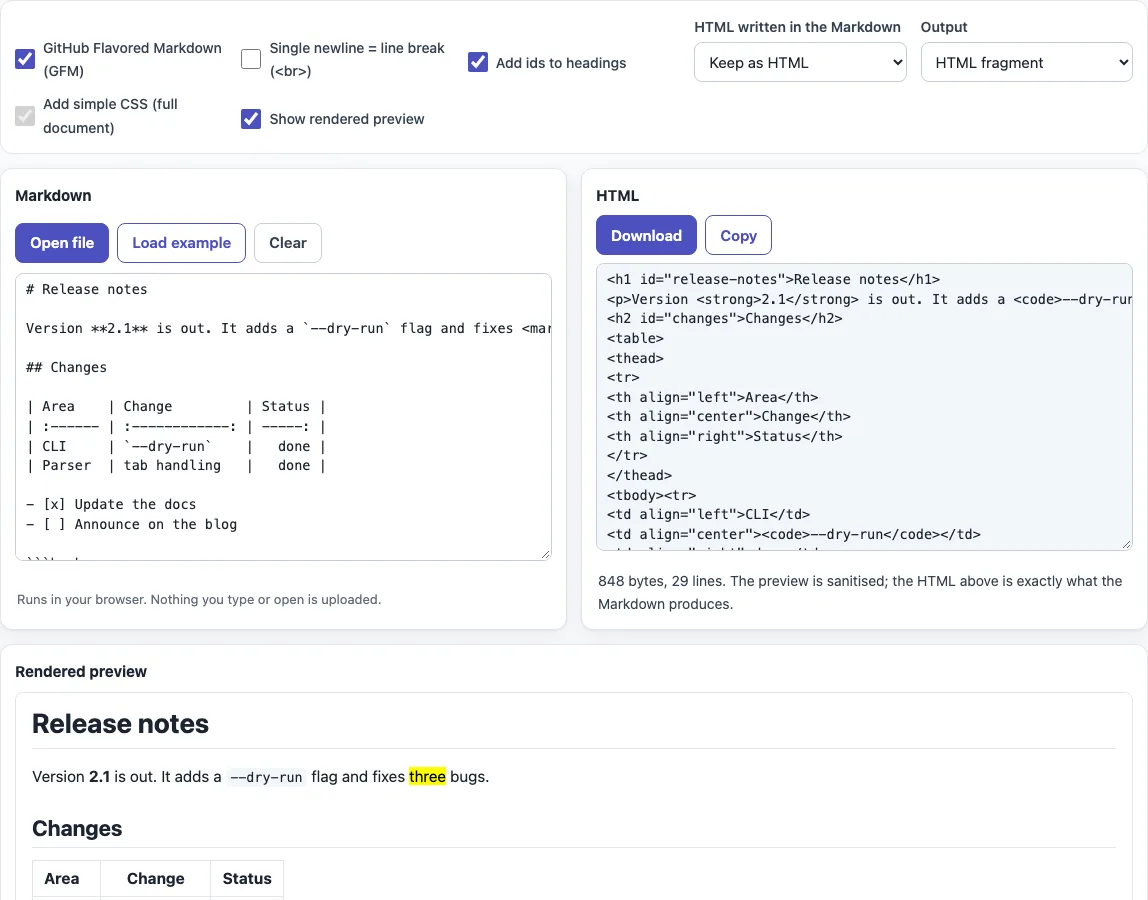
How to use the Markdown to HTML tool
- Paste your Markdown into the “Markdown” box. You can also click “Open file”, drop a file onto the box, or click “Load example” for a sample with a heading, inline HTML, an aligned table, a task list, a code block and a link. “Clear” empties the box.
- Check the options. “GitHub Flavored Markdown (GFM)” is on by default. Turn on
Single newline = line break (<br>)only if you want a single newline to become<br>. Under “HTML written in the Markdown” choose “Keep as HTML” or “Show as text (escape)”. Under “Output” choose “HTML fragment” or “Full HTML document”, and decide whether to keep “Add ids to headings” and “Add simple CSS (full document)”. - Read the result in the read-only “HTML” box. Below it you see the size and the line count of the output.
- Click “Copy” to put the HTML on your clipboard, or “Download” to save it. The file name is the slug of your first
#heading plus.html, so “Release notes” becomesrelease-notes.html. Without an H1 the file isdocument.html. - Keep “Show rendered preview” on to see how the Markdown displays. The preview is sanitized, but the HTML in the “HTML” box is not.
Your option choices are kept in the page address, so a link to the page reproduces them. Printing from the browser prints the rendered preview.
How do I convert Markdown to HTML?
Paste Markdown into the “Markdown” box and the HTML appears in the “HTML” box. A line starting with # and a space becomes an <h1> element and **bold** becomes <strong>. Given Version **2.1** is out with <mark>3 fixes</mark>., the output is <p>Version <strong>2.1</strong> is out with <mark>3 fixes</mark>.</p>. Whitespace can differ slightly from other converters, but the structure follows the CommonMark and GFM rules.
Fragment or full document?
The default output is an HTML fragment: only the elements the Markdown produces, with no doctype or <head>, so you can place it inside an existing page. Choose “Full HTML document” for a standalone file. It adds a doctype, charset, viewport, a <title> (your first H1, or “Document”) and an <article class="markdown-body"> wrapper. “Add simple CSS (full document)” then adds a small stylesheet in a <style> element; it has no effect on a fragment.
Does it support tables and task lists?
Yes, when “GitHub Flavored Markdown (GFM)” is on, which is the default. A GFM table needs a header row and a delimiter row with the same number of cells. Colons in the delimiter row set alignment, which comes out as align="left", align="center" or align="right". A task item such as - [x] done becomes <input checked="" disabled="" type="checkbox">, so it displays but cannot be ticked. With GFM off, tables, task lists, strikethrough and autolinks stay as plain text.
What happens to HTML inside my Markdown?
Markdown allows raw HTML. With “Keep as HTML”, the default, it passes through unchanged. With “Show as text (escape)”, inline and block HTML is written as <mark>-style text, so the tags appear as visible characters. The HTML output is never sanitized: a <script> tag stays in it when “Keep as HTML” is selected. Escape it, or run the output through a sanitizer, before you publish text you did not write.
Do headings get ids?
Yes, when “Add ids to headings” is on, which is the default. Ids follow GitHub’s pattern: lower case, punctuation removed, spaces turned into hyphens, and duplicates numbered -1, -2. So # Release notes becomes <h1 id="release-notes">, and two headings named A become id="a" and id="a-1". Turn the option off for headings without ids.
Sources (checked 13 October 2026): CommonMark 0.31.2, GitHub Flavored Markdown spec.
Frequently asked questions
Is this Markdown to HTML tool free?
Yes. It is free, needs no sign-up, and everything runs in your browser. Nothing you type or open is uploaded.
Why does a single line break disappear?
In CommonMark a single newline inside a paragraph is a soft line break, so a and b on separate lines give <p>a\nb</p>, which browsers show as one line. Turn on Single newline = line break (<br>) to get <p>a<br>b</p>.
Does the output draw my Mermaid diagrams?
No. A block fenced with mermaid comes out as an ordinary <pre><code class="language-mermaid"> block, so the diagram is not drawn in the HTML.
Why is my download named document.html?
The name is the slug of the first H1 heading plus .html. If your Markdown has no H1, the file is document.html. Add a line such as # Your title to name it after the title.
Can I publish the HTML directly?
Check it first. The output is not sanitized, so a <script> tag is kept when “Keep as HTML” is selected. Use “Show as text (escape)” or a sanitizer for content from untrusted sources.
What does turning GFM off change?
It leaves only CommonMark behavior. For example ~~x~~ www.example.com stays as plain text instead of becoming <del>x</del> and a link.
Related tools
- Markdown editor — write and edit Markdown with a live preview.
- Markdown file viewer — open a Markdown file and read it as formatted text.
- Markdown cheat sheet — look up the syntax for headings, lists, links and code.
- Markdown table generator — build a Markdown table without typing the pipes and dashes by hand.
- Markdown formatter — tidy the layout of your Markdown source before converting it.
- Mermaid in Markdown previewer — check Mermaid diagrams inside Markdown when you need to see them drawn.
- README generator — start a README file with the standard sections filled in.