Markdown Table Generator
Type or paste your data into a grid and get a ready-to-paste Markdown table with a live preview, for GitHub, Jupyter notebooks and any GFM Markdown.
table.md.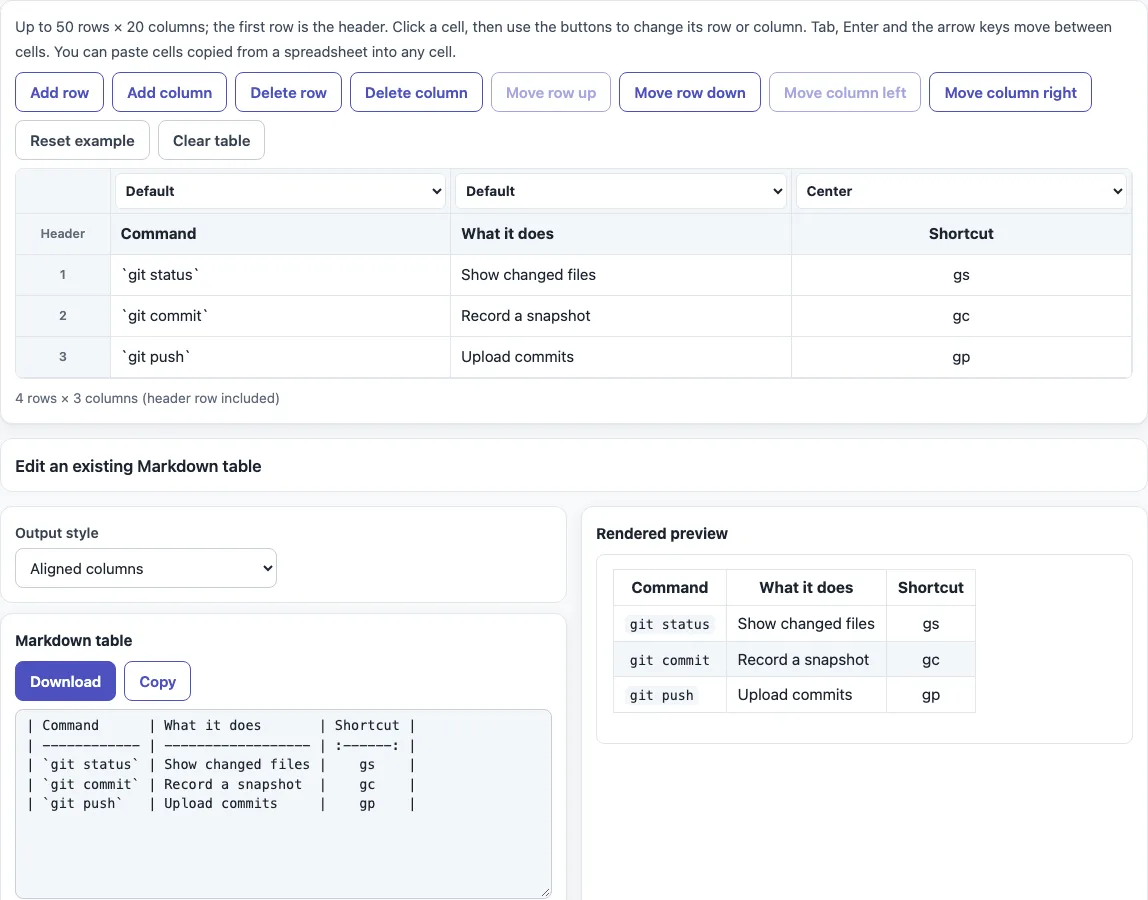
How to use the Markdown table generator
- The grid opens with a 4 × 3 example of git commands. Click “Clear table” for an empty 3 × 3 grid, or “Reset example” to bring the sample back.
- Click any cell and type. Every cell is a text box. The first row, labeled “Header”, is the header; it cannot be deleted or moved.
- Shape the table with the buttons above the grid. They act on the cell you last clicked: “Add row” (below it), “Add column” (to its right), “Delete row”, “Delete column”, “Move row up”, “Move row down”, “Move column left” and “Move column right”. Buttons that cannot apply are disabled.
- Set the alignment of each column with the select above its header cell: “Default”, “Left”, “Center” or “Right”.
- Under “Output style”, choose “Aligned columns” (the default, padded so the columns line up) or “Compact” (no padding).
- Click “Copy” to copy the Markdown, or “Download” to save
table.md. The “Rendered preview” sits next to it. - To edit a table you already have, open “Edit an existing Markdown table”, paste the table or a document that contains one, and click “Load into grid”. The first table outside code fences is used.
Tab and Shift+Tab move between cells. Enter moves down and Shift+Enter moves up; Enter in the last row, or Tab in the very last cell, adds a row. The arrow keys also move between cells. The limit is 50 rows, header included, and 20 columns. Printing from the browser prints the preview.
How do I make a table in Markdown?
A Markdown table has a header row, a delimiter row made of hyphens, and optional body rows. Cells are separated by pipes (|), and each row sits on its own line. This is the table the grid starts with:
| Command      | What it does       | Shortcut |
| ------------ | ------------------ | :------: |
| `git status` | Show changed files |    gs    |
| `git commit` | Record a snapshot  |    gc    |
| `git push`   | Upload commits     |    gp    |
The header and delimiter rows must have the same number of cells. Leading and trailing pipes are optional, but they make the table easier to read. A body row with fewer cells is padded with empty cells, and extra cells in a longer row are ignored. The table ends at the first blank line.
How do I align columns?
Set alignment with colons in the delimiter row: :-- aligns left, :-: centers and --: aligns right. Plain --- states no alignment, so the renderer chooses, which is usually left. This tool writes --- for “Default”. Colons are needed only in the delimiter row; body cells need no marking.
What is the difference between Aligned columns and Compact?
Both produce the same table when rendered. “Aligned columns” pads every cell with spaces so the pipes line up in plain text, which helps when people read the source. “Compact” writes | a | b | and | --- | --- | without padding, which gives shorter text. East Asian wide characters count as two columns when padding.
How do I put a pipe in a cell?
Escape it with a backslash: write \| instead of |, so it reads as text and not as a column boundary. The tool does this for you when a cell contains a pipe. The escape is also needed inside a code span, because the table is split into cells before inline code is read.
How do I add a line break in a cell?
A table row must stay on one line, so a real newline would end the row. The tool writes a line break inside a cell, for example one in a pasted spreadsheet cell, as <br>. Cell content is inline Markdown only, so lists and other block elements do not work in a cell.
Does it work on GitHub and in Jupyter?
The output uses the GitHub Flavored Markdown table format (the Tables extension of the GFM spec), which is what GitHub uses for pipe tables. Jupyter Notebook Markdown cells render GFM-style pipe tables too, so the same text works there. The tool does not emulate Jupyter, so paste the table into a Markdown cell to check how it looks.
Can I paste from a spreadsheet?
Yes. Copy the cells in your spreadsheet, click a cell in the grid and paste. The data is read as tab-separated values, quoted cells are supported, and the paste fills the grid starting at the cell you clicked. The grid grows to fit, up to the limit; cells that do not fit are left out and a message says so. Pasting a single value works as a normal paste.
Sources (checked 13 October 2026): GitHub Flavored Markdown spec, Tables extension, Jupyter Notebook: working with Markdown cells.
Frequently asked questions
Is the Markdown table generator free?
Yes. It is free and needs no sign-up.
Is my data uploaded anywhere?
No. Everything runs in your browser, and nothing you type, paste or open is uploaded.
What is the size limit for a table?
A table can have up to 50 rows, including the header row, and up to 20 columns.
Why can’t I delete or move the header row?
Every GFM table must have a header row, so the first row is fixed. You can still edit its cells.
Why does my Markdown show as plain text in some places?
Not every app renders pipe tables. Check that the header and delimiter rows have the same number of cells, and that each row is on a single line.
Will the table work on GitHub and in Jupyter?
Yes. The output uses the GFM table format that GitHub renders, and Jupyter Notebook Markdown cells render GFM-style pipe tables too.
Can I print the table?
Yes. Use your browser’s print command, which prints the rendered preview.
Can I edit a table I already wrote?
Yes. Open “Edit an existing Markdown table”, paste the table or a whole document, and click “Load into grid”. If it is larger than 50 rows or 20 columns, the extra rows or columns are cut and a message says so.
Related tools
- Markdown table syntax checker — use it to find errors in a table you have already written by hand.
- Markdown formatter — use it to tidy the spacing and layout of a Markdown document.
- Markdown cheat sheet — use it as a quick reference for Markdown syntax beyond tables.
- Markdown editor — use it to write and preview a full Markdown document.
- Markdown to HTML converter — use it when you need the HTML version of your Markdown.
- README generator — use it to build a README file that can include your tables.