Markdown Formatter
Paste a Markdown document and get it back with consistent bullets, emphasis, headings, numbering, code fences, spacing and aligned tables, without changing how it renders.
This Markdown formatter is a free browser tool that rewrites Markdown text into one consistent style. Paste your text, click “Open file” to load a .md file, or drop a file onto the input, and the formatted result appears on the right. It runs in your browser, nothing you type or open is uploaded, and you do not need to sign up.
Use it to tidy a README, a set of notes or a documentation file, so that bullets, emphasis, headings, numbered lists, code fences and tables follow the same rules throughout. It aims to leave the rendered document unchanged. Each change is listed line by line, so you can check it before you copy or download the result.
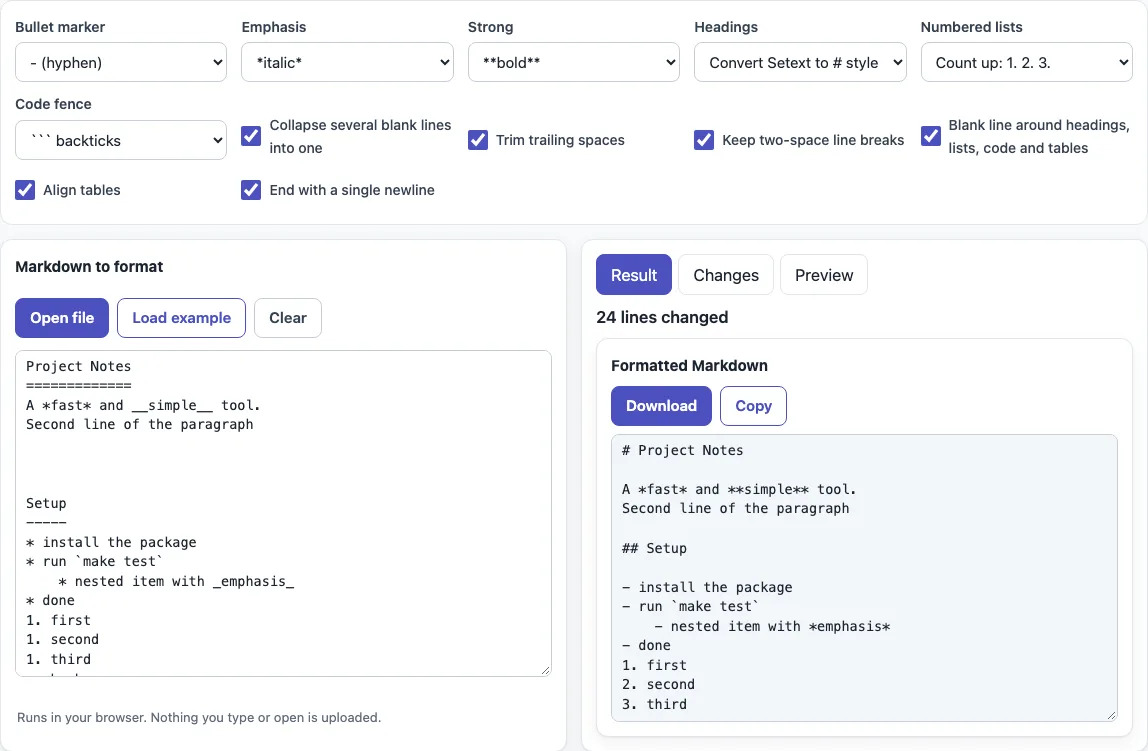
How to use the Markdown formatter
- Add your text. Paste it into the “Markdown to format” box on the left, click “Load example” to try the built-in sample titled “Project Notes”, or click “Open file” or drop a file onto the box. “Clear” empties it.
- Choose your options above the box: “Bullet marker”, “Emphasis”, “Strong”, “Headings”, “Numbered lists” and “Code fence”, plus six checkboxes for blank lines, trailing spaces, two-space line breaks, spacing around blocks, table alignment and the final newline. Each setting starts on its default, and “Keep as written” leaves that element as you wrote it.
- Read the “Result” tab, which holds the formatted text. A line above it says how many lines changed, or that nothing changed.
- Open the “Changes” tab. Removed lines are marked with a minus sign and added lines with a plus sign, with one unchanged line of context on each side. Very long documents skip this view, but the result and preview stay complete.
- Open the “Preview” tab to see how the formatted text renders.
- Click “Copy” to copy the result, or “Download” to save it as
formatted.md.
Your option choices are kept in the page address, so a link to the page reproduces them. Printing from the browser prints the formatted text.
What does a Markdown formatter do?
A Markdown formatter rewrites the marks in a Markdown file so that they follow one consistent style. It does not change how the document looks when rendered, so the headings, lists and links still read the same.
The tool applies a fixed rule to each element. Bullet markers become one character you choose: -, * or +. Emphasis can be set to *italic* or _italic_, and strong text to **bold** or __bold__, but only where the other character parses to the same result, so snake_case_name and 2*3*4 are left alone. Underlined headings (=== or --- under a line) become # style, but only when they are a single line. Numbered lists can count up (1. 2. 3.) or repeat the first number on every item, and a list starting at 3 stays at 3. Code fences can use backticks or tildes, and a longer fence is used when the code contains the fence characters.
Spacing is tidied too. Several blank lines collapse into one, trailing spaces are trimmed, blank lines surround headings, lists, code and tables, tables are aligned, and the file ends with a single newline. Windows line endings become standard \n line endings.
Can formatting break my document?
Formatting can break a document when an edit changes the structure Markdown reads, for example by merging two lists or turning normal text into code. This tool avoids those changes. In CommonMark, changing the bullet character starts a new list, so a list that mixes * and - is left as written. A list is also skipped when widening a number such as 9. to 10. would affect nested content, or when the list touches HTML.
Some content is never changed: fenced and indented code, inline code, HTML blocks and comments, YAML front matter, link reference definitions, and block quote lines, where only trailing spaces are removed. In tables, only padding and emphasis markers change.
Hard line breaks need care. Two or more spaces at the end of a line make a line break, and they are kept when “Keep two-space line breaks” is on. Turning that option off removes them on purpose. With any other option combination the rendered HTML stayed identical in testing, but a few unusual inputs, such as *** or ===== directly after a lazy paragraph line, can still render differently. Check the “Preview” tab before you save.
Sources (checked 13 October 2026): CommonMark 0.31.2, GitHub Flavored Markdown spec, Tables extension.
Frequently asked questions
How do I change * bullets to -?
Set “Bullet marker” to “- (hyphen)”. Every bullet list in the file then uses -. If a list mixes bullet characters, the tool leaves it alone, because changing characters would otherwise merge separate lists.
How do I convert underlined headings to # style?
Keep “Headings” on “Convert Setext to # style”, which is the default. A single line followed by ===== becomes # Title, and one followed by ----- becomes ## Title. Multi-line underlined headings are left as written.
Is it free and private?
Yes. The tool is free and needs no sign-up. It runs in your browser, and nothing you paste or open is uploaded.
Does it handle Windows line endings?
Yes. Windows line endings are converted to standard line endings in the result, so the file works on other systems as well.
Why did the tool leave a list unchanged?
It skips a list in three cases: the list mixes bullet characters, changing its numbers would widen a marker that has nested content, or the list touches HTML. Skipping keeps the list’s meaning intact.
Will my code blocks change?
No. Fenced and indented code, and inline code, are never changed. Only the fence style can change through “Code fence”.
How do I keep my changes?
Click “Copy” to copy the formatted text, or “Download” to save formatted.md. Check the “Changes” tab first if you want to see every edit.
Related tools
- Markdown table generator — use it to build a table from scratch before you format it.
- Markdown table syntax checker — use it when a table will not render and you need to find the syntax problem.
- Markdown cheat sheet — use it to look up the syntax for headings, lists, links and code.
- Markdown editor — use it to write and preview Markdown as you type.
- Markdown to HTML converter — use it when you need HTML output instead of Markdown.
- README generator — use it to start a README file with a standard layout.