Markdown Cheat Sheet
Every Markdown syntax on one page: see each result live, copy the snippet or try it in the playground. Covers CommonMark, GitHub Flavored Markdown and GitHub extras.
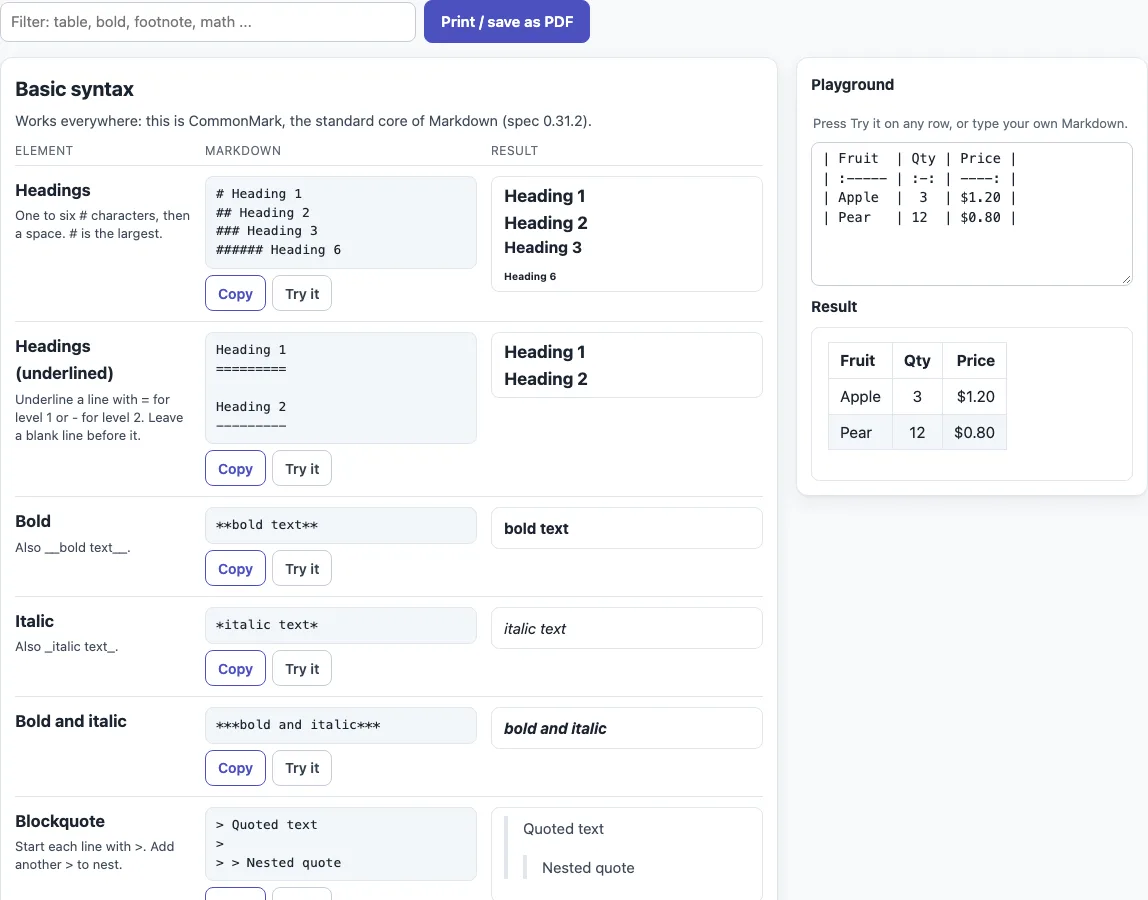
How to use the Markdown cheat sheet
- Type a word in the filter box (“Filter: table, bold, footnote, math …”), such as
table,boldorfootnote. Only rows where every typed word appears in the name, source or note stay visible, whatever the capital letters. If nothing matches, a message asks you to try a shorter word. - Scroll through the three groups: “Basic syntax”, “Extended syntax (GitHub Flavored Markdown)” and “GitHub-only and notebook features”. Each row shows the Markdown source next to the rendered result.
- Click “Copy” on a row to copy its source.
- Click “Try it” to load the source into the “Playground”. Edit the text in the Playground box and watch the “Result” pane below it update. Pressing “Try it” on another row replaces what is in the box. On screens narrower than 1100 px, “Try it” scrolls you down to the Playground.
- Rows marked “Source only: not drawn by this page” show only the source, because this page’s renderer does not draw them.
- Click “Print / save as PDF” to open your browser’s print dialog. The sheet is laid out in two compact columns, about two pages, without buttons or the Playground. Only rows left visible by the filter are printed.
The Playground starts with the table example, and nothing in it is saved or sent anywhere.
What is the Markdown syntax for bold, italic, headings, lists, links, images, code and tables?
Wrap text in ** for bold and in * for italic; __ and _ also work. Start a heading line with one to six # characters followed by a space, for example ## Heading. You can also underline a line with = (level 1) or - (level 2), leaving a blank line before it. Bullets start with -, * or +, and numbered items start with a number followed by . or ). The first number sets where the list starts.
Links use [text](https://example.com) and images use . On this page images appear as a small alt-text tag, because no pictures are loaded from the web. Inline code uses single backticks, and a fenced code block uses three backticks on their own lines, with the language after the opening fence. A line of three or more -, * or _ draws a horizontal rule.
What is GitHub Flavored Markdown and how does it differ from basic Markdown?
GitHub Flavored Markdown (GFM) is basic Markdown (CommonMark) plus extra rules. The extended rows add tables, task lists, strikethrough with ~~text~~, and automatic links for www. and http addresses. The GitHub-only rows add footnotes, alerts, emoji, math, Mermaid diagrams and hidden comments. Basic syntax works on almost any Markdown tool, while GitHub-only features need GitHub or a similar renderer.
Markdown cheat sheet for Jupyter?
Jupyter Notebook Markdown cells use GitHub-flavored Markdown, so triple-backtick code blocks and pipe tables work. HTML is allowed, and LaTeX math between $ signs is rendered by MathJax. A Jupyter cheat sheet is therefore the basic rows, the extended rows and the two math rows.
How do I make a line break in Markdown?
End a line with a backslash, or with two or more trailing spaces. In a .md file on GitHub you can also end the line with <br/>. In issues, pull requests and discussions, a single newline already renders as a line break.
How do I escape a Markdown character?
Put a backslash before the character. For example, \*not italic\* shows *not italic* with the asterisks visible. Backslash escapes work for any ASCII punctuation character, but not inside code spans, code blocks, autolinks or raw HTML.
How do I make a table, task list, footnote or alert on GitHub?
A table needs a header row, a delimiter row and equal cell counts in both. Use :-- for left, :-: for center and --: for right alignment, and write a pipe inside a cell as \|. A task list uses - [ ] for an unchecked item and - [x] for a checked one. A footnote uses text[^1] in the text and [^1]: note elsewhere. An alert starts a quote with a line such as > [!NOTE], > [!TIP] or > [!WARNING]. The footnote and alert rows show only the source here.
Sources (checked 13 October 2026): CommonMark 0.31.2, GitHub Flavored Markdown spec, GitHub Docs: basic writing and formatting syntax, Jupyter Notebook: working with Markdown cells.
Frequently asked questions
Is there a Markdown cheat sheet PDF?
There is no PDF file to download. “Print / save as PDF” opens your browser’s print dialog with a compact two-column layout; if your browser offers a PDF destination there, you can use it.
Does this cheat sheet cover GitHub markdown?
Yes. It includes the basic rows and the extended rows that GitHub supports, such as tables and task lists. The GitHub-only rows appear as source, because this page’s renderer does not draw them.
Why does my table not render?
Check that the header row and the delimiter row have the same number of cells. A blank line ends a table, so keep every table row together without blank lines.
Why do I see a small tag instead of my image?
Images in examples are shown as a small alt-text tag. No pictures are loaded from the web on this page.
Is my text uploaded anywhere?
No. Everything runs in your browser, and nothing you type or open is uploaded. The tool is free and needs no sign-up.
Why does my footnote or alert not show in the Playground?
The Playground preview uses this page’s renderer, which does not draw GitHub-only features. Paste the source into a GitHub file or comment to see the feature drawn.
Can I copy a row without retyping it?
Yes. Click “Copy” on any row to copy its Markdown source, or click “Try it” to load it into the Playground and edit it there.
Related tools
- Markdown editor — write and preview Markdown in one place when you want to build your own document.
- Markdown file viewer — open a Markdown file and read it as formatted text.
- Markdown to HTML converter — see the HTML output for your Markdown.
- Markdown table generator — build a Markdown table without writing the pipes and delimiters by hand.
- Markdown formatter — tidy up the layout of existing Markdown text.
- Mermaid in Markdown previewer — check Mermaid diagram blocks before you add them to a Markdown file.
- README generator — create a starting README file for a project.