How to Write a README (with a README Checker)
Paste your README to see what is missing: title, description, install, usage, license, contributing, contents, heading levels, broken #links and image alt text.
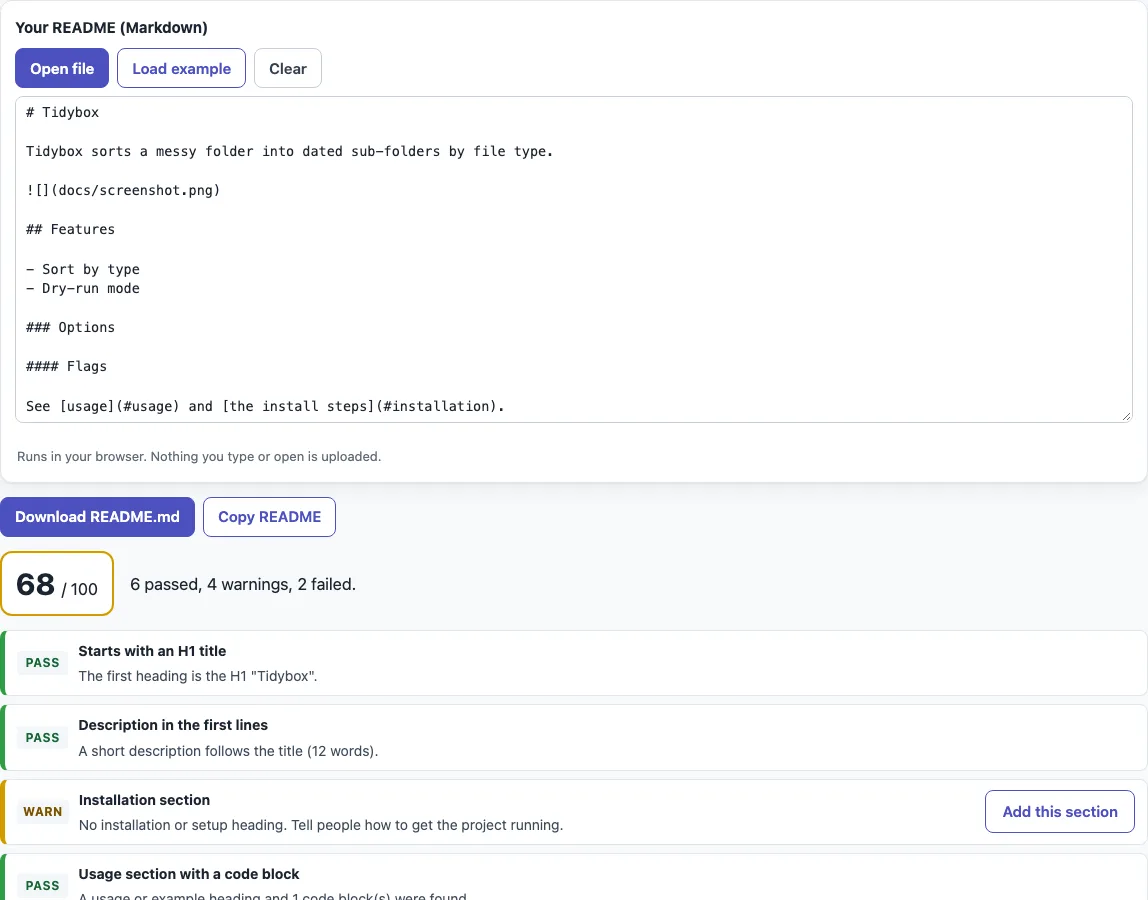
How to use the README checker
- Paste your README into the text box, drop a file onto it, or choose “Open file”. The tool accepts
.md,.markdownand.txtfiles. - To see how the checker works first, leave the example in place. It opens with a deliberately incomplete README. Choose “Load example” to restore it at any time, or “Clear” to empty the box.
- Read the score and the line “N passed, N warnings, N failed.” A score of 80 or more is green, 50 to 79 is amber, and below 50 is red.
- Go through the 12 checklist rows. Each one shows Pass, Warn or Fail and a short reason.
- For the title, description, installation, usage, license, contributing and table of contents rows, choose “Add this section” to append a skeleton. The title goes at the top, the description goes right after the H1, and the table of contents is built from your existing H2 headings. The check re-runs at once.
- Edit the text to fill in the skeletons and fix the remaining warnings and failures. The checks update as you type.
- When you are happy with the result, choose “Download README.md” to save the file or “Copy README” to copy the edited text.
How to write a README for a project
Most readers look for a title, a short description, install steps, usage examples, a license and contributing notes. Start with an H1 title such as # Tidybox, then write one or two plain sentences that say what the project does. The tool counts a description as passing when one of the 15 lines after the title is prose of at least five words.
Five items count double in the score: title, description, installation, usage and license. An installation heading should contain a word such as “install”, “setup” or “getting started”. A usage heading should contain “usage”, “example” or “how to use”, and the file needs at least one fenced code block. A license section is a heading containing “license”. A missing license is a fail rather than a warning, because without a license others have no clear right to reuse your code.
How to write a README file for GitHub
When a repository has more than one README, GitHub shows the one from the .github directory first, then the repository root, and finally docs. GitHub also builds an outline from your headings, which you open with the Outline menu icon in the top corner of the rendered page. A link that starts with / is relative to the repository root, and relative links and image paths follow the branch being viewed. Content beyond 500 KiB is truncated, so keep the file well under that size.
How to write a README file in Markdown
A README is normally a Markdown file named README.md. Use one H1 for the title, H2 for main sections and H3 for subsections. Do not skip levels: a jump from H2 to H4 gets a warning with the line numbers. Give every image alt text, for example , so screen readers and broken-image views still describe it. Avoid empty links such as [Docs](). Add a table of contents once the file has about six ## sections; the checker warns from six sections without one.
Sources (checked 13 October 2026): About READMEs (GitHub Docs)
Frequently asked questions
How do I write a read me file for a project?
Create a file named README.md in the project root. Add a title, a short description, installation steps, a usage example with a code block, and a license section. The checker above tells you which of these are missing and can add a skeleton for each.
Where does GitHub look for the README?
GitHub checks the .github directory first, then the root directory, then docs, and shows the first README it finds. Keep one main README in the root so readers find it straight away.
What is the difference between README and README.md?
Both are README files. The .md extension tells GitHub the file is written in Markdown, so headings, links and code blocks are formatted. A file named only README is shown as plain text.
Why does my anchor link not work?
An anchor is made from the heading text: lower case, punctuation removed, spaces turned into hyphens. A heading ## Usage gives #usage, so [Usage](#usage) works only if that heading exists. The example README in the tool links to #usage and #installation without matching headings, which is why that check fails. Repeated headings get -1, -2 and so on.
How long should a README be?
There is no fixed length. The tool warns above 1,000 lines, which is its own guideline, and fails above 500 KiB, the point where GitHub truncates content. The example in the tool is 33 lines and passes.
Related tools
- README generator — when you want to create a README from a set of answers rather than edit a draft.
- README examples and templates — when you want a finished layout to fill in.
- GitHub README badge generator — when you want to add status or version badges to your README.
- Changelog template — when you need a separate file that lists changes between versions.
- Markdown table generator — when your README needs a table and you want the Markdown written for you.
- Markdown editor — when you want to write and preview Markdown in one place.
- API documentation template — when your project is an API and needs endpoint documentation.