GitHub README Badge Generator
Build shields.io badges for your README — static text badges or live GitHub, npm, PyPI, Docker and Codecov badges — and copy Markdown, HTML, URL or reStructuredText.
README.md. This generator builds the badge for you: pick a type, fill in a few fields, and copy the code as Markdown, HTML, a plain URL or reStructuredText. You can make a static badge with your own text and color, or one of 12 dynamic badges that show live data for a GitHub repository, an npm or PyPI package, a Docker image or a Codecov report. Collect several badges into one set and copy them together so they sit on one line. The badges are shields.io images. The tool runs in your browser, is free, and needs no sign-up.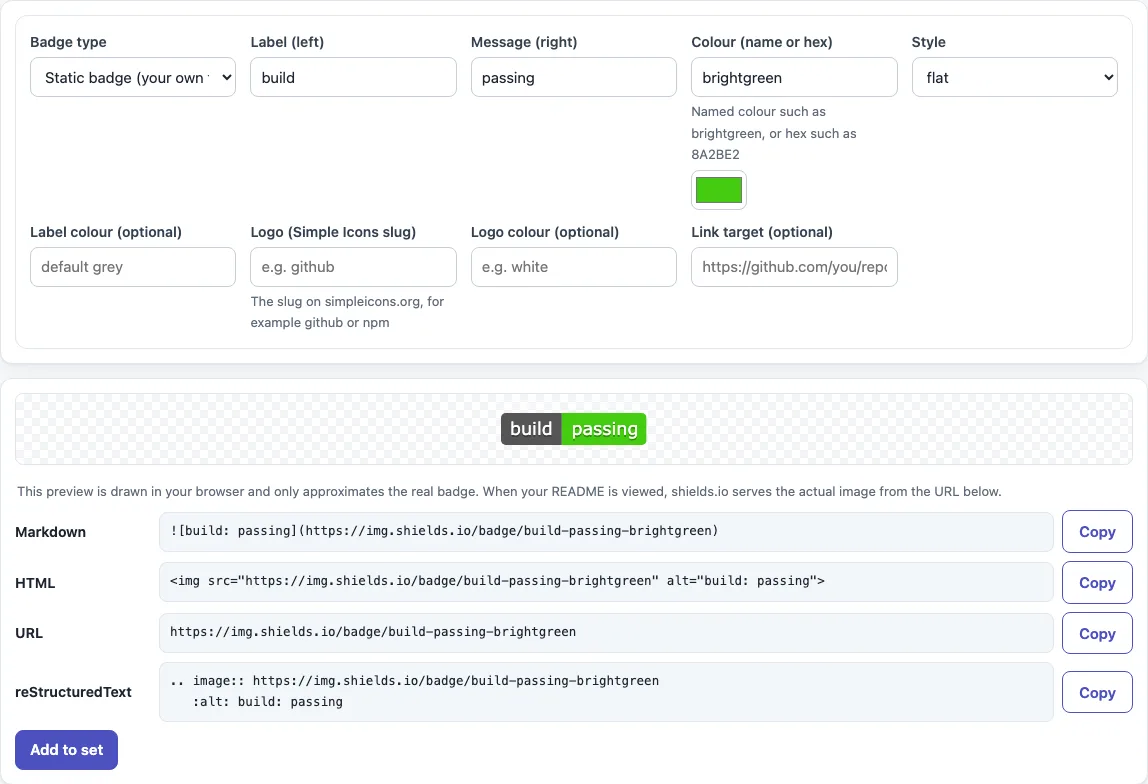
How to add a badge to your README
- Choose a “Badge type”. Pick “Static badge (your own text)”, or one of the 12 dynamic types, such as “GitHub stars” or “GitHub Actions workflow status”.
- For a static badge, type a “Label (left)” (it starts as “build”) and a “Message (right)” (it starts as “passing”). The message is required. Leave the label empty for a message-only badge.
- For a dynamic badge, fill in the fields that appear, such as “User or organisation”, “Repository”, “Package name” or “Workflow file”. Only the fields that badge needs are shown.
- Set the “Colour (name or hex)” of a static badge, or use the color picker beside it. A dynamic badge has an optional “Colour override (optional)”. A color the tool does not recognize is left out, and a notice tells you.
- Choose a “Style”, and optionally a “Label colour (optional)”, a “Logo (Simple Icons slug)” such as
github, or a “Logo colour (optional)”. - Enter a “Link target (optional)” if the badge should open a page when clicked.
- Check the preview, then press “Copy” on the row you need: Markdown, HTML, URL or reStructuredText.
- To combine badges, press “Add to set” for each one. “Your badge set” shows their previews, a “Format” select and one code box. Press “Copy” for the combined code, “Remove” to drop one badge, or “Clear” to start again.
Paste the copied Markdown into your README.md where you want the badges, usually just under the title.
How do I add badges to a GitHub README?
A badge is an image your README displays, written in Markdown as . Paste that line into README.md where you want it. The “Markdown” row gives the complete line. With a link target set, it becomes [](link-url), a clickable badge.
How do I make a custom badge?
Choose “Static badge (your own text)” and fill in “Message (right)”, plus a label if you want one. The URL has the form https://img.shields.io/badge/<label>-<message>-<color>, or /badge/<message>-<color> without a label. Colors can be names such as blue or hex codes such as ff8800. If you type a color the tool does not recognize, a static badge falls back to blue.
How do I show a dash or underscore in a badge?
In the badge path, a single dash separates the parts, so a dash inside your text is written as -- and an underscore as __. A space is written as _ or %20. The tool does this for you: label “my-lib_v2”, message “95%” and color #FF8800 become https://img.shields.io/badge/my--lib__v2-95%25-ff8800.
How do I show build status?
Choose “GitHub Actions workflow status”, then enter “User or organisation”, “Repository” and “Workflow file”, such as ci.yml. For octocat, Hello-World and ci.yml the image address is https://img.shields.io/github/actions/workflow/status/octocat/Hello-World/ci.yml. It shows the result of the latest run of that workflow.
Can a badge link somewhere?
Yes, through “Link target (optional)”. The shields.io link parameter only works inside an <object> tag, not in <img> or Markdown, so the tool wraps the image in a link instead. In HTML the <img> sits inside an <a>, and in reStructuredText the :target: option is used.
Does the preview load images from shields.io?
No. The preview is drawn locally as inline SVG and the tool makes no request to shields.io. It only approximates the real look: text widths are estimated and logos appear as a dot. The real image is rendered by shields.io when someone views your README.
Sources (checked 13 October 2026): Shields.io static badge, GitHub Actions workflow status, Docker pulls, Codecov, CommonMark 0.31.2
Frequently asked questions
Can I use the badges in commercial work?
Yes. What the tool produces can be used for any purpose, including commercial and client work, royalty-free and without attribution. The only limit is that you may not copy the website or the tool itself as a competing service.
What does the notice about an unrecognized color mean?
The color you typed is not a name or hex code the tool knows, so it is left out of the URL. A static badge then uses blue, and a dynamic badge keeps the default color of its type. Check the spelling, or use a hex code.
Do private Codecov repositories need extra setup?
Yes. For a private repository the Codecov badge URL needs a ?token= parameter added at the end. The tool does not add it for you.
Can I put several badges on one line?
Yes. Press “Add to set” for each badge, then copy the set. Markdown badges are joined with spaces so they sit on one line. HTML and URL outputs put one badge per line, and reStructuredText directives are separated by blank lines.
Which logos can I use?
Any logo with a Simple Icons slug. Type the slug in “Logo (Simple Icons slug)”, for example github or npm, and set “Logo colour (optional)” if you want a specific color.
Can I use these badges in a GitHub profile README?
Yes. A profile README is a Markdown file like any other, so the Markdown output works there. Use “Static badge (your own text)” for labels such as your role or stack.
Related tools
- README generator — when you are starting a README from scratch and want a full file, not only badges.
- README examples and templates — when you want a ready-made layout to fill in.
- How to write a README — when you want to check a README you have already written.
- Changelog template — when you need a changelog in the Keep a Changelog format.
- Markdown table generator — when you want to add a table, such as a compatibility list, to your README.
- Markdown editor — when you want to write and preview the whole Markdown file before you commit it.
- API documentation template — when your project has an API and you want a structure for documenting its endpoints.