Changelog Template (Keep a Changelog Editor)
Build a CHANGELOG.md in the Keep a Changelog 1.1.0 format: add entries, release Unreleased as the next version, generate compare links, or paste a changelog to check it.
CHANGELOG.md file in the Keep a Changelog 1.1.0 format. You add entries, release versions with a date, and the tool writes the Markdown for you, ready to copy or download. It opens with an example changelog loaded, so you can see the layout and section names before you start your own. If you already have a changelog, import it and the tool checks it for common problems, such as missing dates or versions in the wrong order. Everything runs in your browser: nothing you type or open is uploaded, the tool is free, and no sign-up is needed.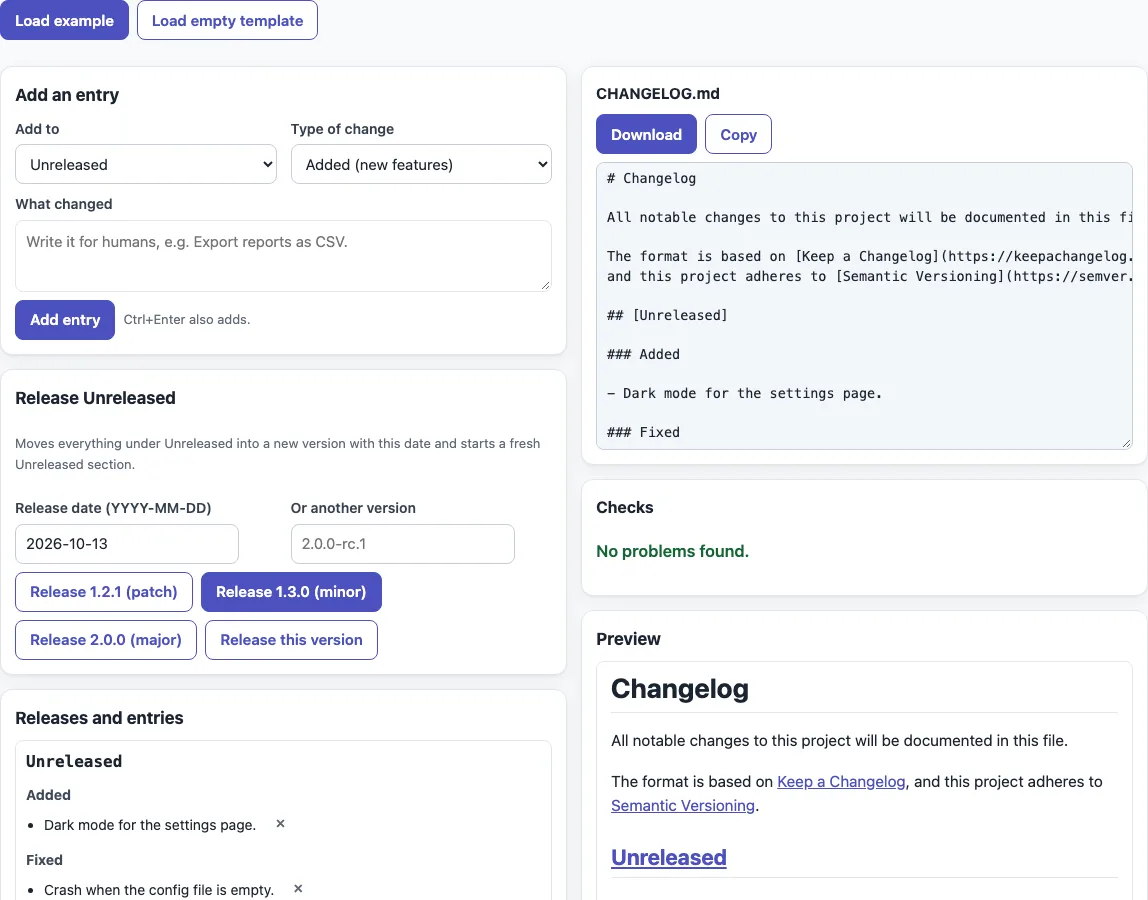
How to use the changelog template
- Press “Load example” to see a complete changelog, or “Load empty template” to start with an empty Unreleased section.
- Under “Add an entry”, choose where the entry goes in “Add to”: Unreleased or an existing version.
- Pick a “Type of change”: Added, Changed, Deprecated, Removed, Fixed or Security.
- Type one plain sentence in “What changed”, then press “Add entry” or Ctrl+Enter. Remove a mistake with the × next to the entry.
- When you are ready to publish, go to “Release Unreleased” and check the “Release date (YYYY-MM-DD)” field. It starts as today’s date.
- Press the button that fits your change: “Release X.Y.Z (patch)”, “(minor)” or “(major)”, where the tool fills in the next version number from the highest version in the changelog. Or type a version in “Or another version” and press “Release this version”.
- Under “Releases and entries”, edit any date, tick “Yanked” if a release was pulled, or press “Delete release”.
- Under “Comparison links”, enter your “Repository URL”. Change “Tag prefix” only if your tags do not start with
v. - Read any warnings under “Checks” and fix them.
The Markdown appears in a box with “Download” (as CHANGELOG.md) and “Copy” buttons, with a rendered “Preview” below it. The repository URL and tag prefix are also kept in the page address, so you can bookmark your setup.
What is a changelog?
A changelog is a file in your project that lists the notable changes in each version, newest first. It tells people what changed, when, and whether an update is safe for them. Keep a Changelog is a widely used convention for writing one. It is written for humans, so it advises against pasting a raw commit log into the file.
What should a changelog template contain?
Start with the title # Changelog and a line saying what the file covers. The tool also writes that the format is based on Keep a Changelog and that the project adheres to Semantic Versioning. Below that, keep an Unreleased section at the top for upcoming work, then one section per version with its release date. Each version groups its changes under the six types, always in the order Added, Changed, Deprecated, Removed, Fixed and Security. The file ends with the comparison links.
Changelog vs release notes?
A changelog is a running file that covers every version, so readers can scan the whole history in one place. Release notes are written for one release, often as an announcement with more context for users. Use a changelog for the record and release notes for a single launch.
How do I mark a bad release?
Tick “Yanked” next to the release in “Releases and entries”. The tool writes [YANKED] after the date, for example ## [1.1.1] - 2026-08-14 [YANKED]. The version stays in the file, so people can see what happened, but the tag tells them not to use it. Keep a Changelog suggests yanking a release that was pulled because of a serious bug or security problem.
What date format?
Use the ISO 8601 order, YYYY-MM-DD, such as 2026-10-13. It sorts correctly and has no regional ambiguity. The “Release date (YYYY-MM-DD)” field must hold a real date in this form, and the Checks panel warns about dates that are missing or not ISO 8601.
How are the compare links built for GitHub and GitLab?
Each version heading links to a comparison with the version before it. On GitHub, version 1.2.0 after 1.1.0 links to /compare/v1.1.0...v1.2.0, the first release links to /releases/tag/v1.0.0, and Unreleased links to /compare/v1.2.0...HEAD. On GitLab the paths are /-/compare/v1.1.0...v1.2.0 and /-/tags/v1.0.0. Bitbucket addresses also get compare links. The tool picks the style from your repository URL. The link definitions are written at the bottom of the file.
Sources (checked 13 October 2026): Keep a Changelog 1.1.0, Semantic Versioning 2.0.0
Frequently asked questions
Is the changelog template free to use?
Yes. The tool is free, runs in your browser, and does not require a sign-up.
Can I use the changelog I create for client work?
Yes. The output may be used for any purpose, including commercial and client work, royalty-free and with no attribution. The only limit is that you may not copy the website or tool as a competing service.
Can I import an existing CHANGELOG.md file?
Yes. Paste the text or open the file in “Import an existing CHANGELOG.md”, then press “Parse into the editor”. The tool reads the Unreleased section, versions with dates, [YANKED] markers, sections, bullets and link definitions, and guesses your repository URL and tag prefix from them.
Does the tool upload what I type?
No. Everything runs in your browser, and nothing you type or open is uploaded.
Where can I find a changelog example?
Press “Load example” on this page to see a full changelog with an Unreleased section, several versions, a yanked release and comparison links. You can edit it or replace it with your own entries.
Does it make a Word or Excel change log?
No. The output is a Markdown text file, CHANGELOG.md. It does not create Word or Excel files, but the plain text can be copied into any editor.
Related tools
- Release notes template — when you want to write an announcement for one specific release.
- Semantic versioning calculator — when you need to work out the right version number before you release.
- README generator — when you want to create the main documentation file for your project.
- README examples and templates — when you want a README layout to fill in next to your changelog.
- GitHub README badge generator — when you want release and build badges linking to your project.
- API documentation template — when you need to document the endpoints your project exposes.
- Markdown editor — when you want to write or preview other Markdown files.
- Markdown formatter — when you want to clean up the spacing and layout of existing Markdown.