Markdown Editor (MD Editor) with Live Preview
Write Markdown on the left and see it rendered on the right as you type. Format with the toolbar or shortcuts, then download the .md or .html file.
# and **, and the result appears at once. A toolbar inserts common syntax, a status line counts words, characters, lines and reading time, and your draft is kept in this browser. The page opens with a sample “Weekly project update” that uses headings, links, a task list, a table, a code block and a quote. Draft a README, notes or documentation, then download a .md or .html file.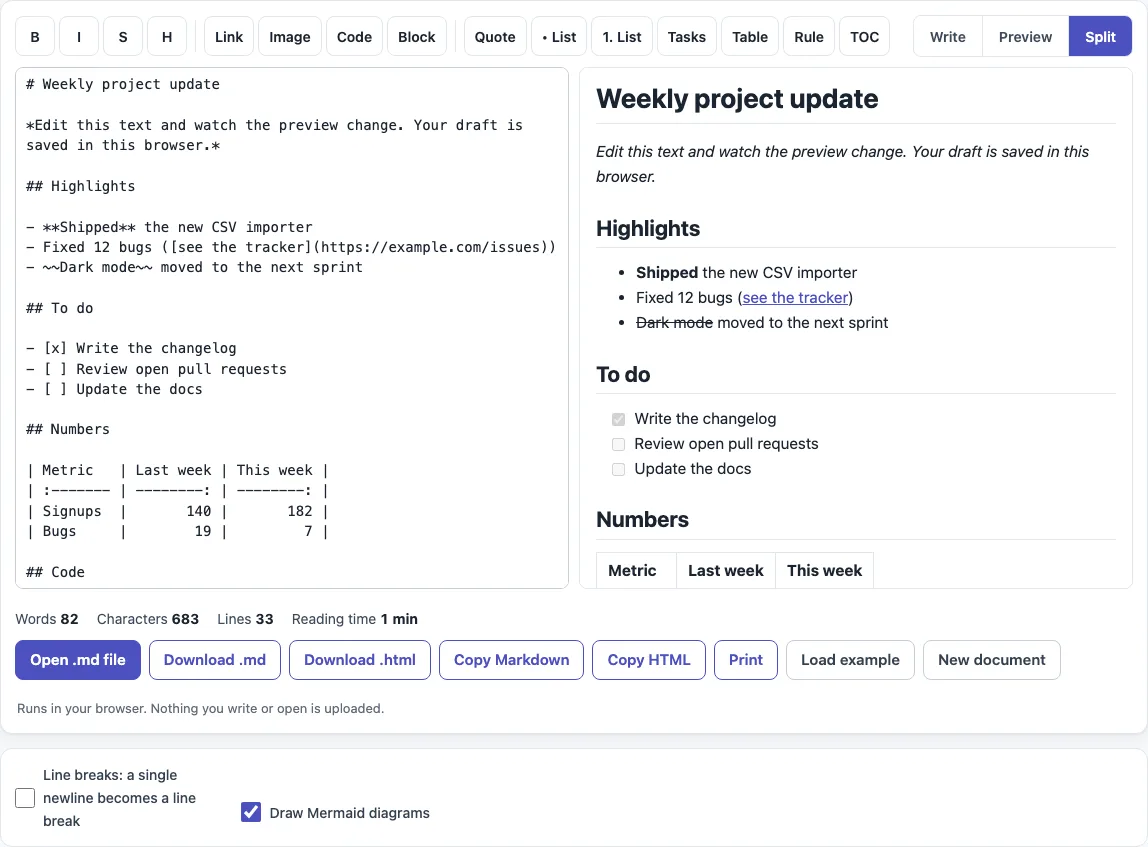
How to use the Markdown editor
- Read the sample in the “Markdown source” box, or click “Load example” at any time to bring it back.
- Type or paste your Markdown. The “Rendered preview” updates as you type. From 980 px screen width the default is “Split” view; on narrower screens use the “Write” and “Preview” tabs.
- Select text and click a toolbar button, for example “B”, “Link”, “Table” or “Tasks”. Press the same button again to remove bold, italic, strikethrough, a heading, a list or a quote. “TOC” inserts a list of links to your H2 and H3 headings.
- Use Ctrl/Cmd+B for bold, Ctrl/Cmd+I for italic and Ctrl/Cmd+K for a link. Ctrl/Cmd+Z undoes toolbar edits.
- Check the status line for Words, Characters, Lines and Reading time.
- Click “Open .md file”, or drop a file onto the editor, to work on an existing document.
- Click “Download .md” or “Download .html”. The file name comes from your first
#heading, so# Hello, World!giveshello-world.md; without one it isdocument.md. - Click “Copy Markdown” or “Copy HTML” to paste the result elsewhere, or “Print” to print the rendered preview only.
- Click “New document” to start empty. It asks first, then deletes the saved draft.
Two options sit below the editor: “Line breaks: a single newline becomes a line break” (off by default) and “Draw Mermaid diagrams” (on by default). Both are kept in the page address.
What is a Markdown editor?
A Markdown editor is a tool for writing text in Markdown, a plain-text syntax where symbols mark formatting. For example, # Title creates a heading and **word** makes a word bold. This editor shows the source on one side and the rendered result on the other, so you see the formatting as you type. With “hello” selected in Say hello now, the “B” button gives Say **hello** now.
Is there a live preview?
Yes. The preview updates as you type. On screens 980 px wide or more, the default is “Split” view, with source and preview side by side. On narrower screens use “Write” and “Preview”, because the “Split” tab only exists on wide screens. The preview is sanitized: scripts and event handlers are removed, so pasted content cannot run.
Can I save my work?
Yes, in two ways. The draft is saved in this browser half a second after you stop typing and is restored on your next visit. It is never sent anywhere. If the browser blocks storage, a message says so and nothing is saved. The sample text is not saved as a draft. Clearing browser data removes the draft, so use “Download .md” or “Download .html” for anything important.
Can I open an existing .md file?
Yes. Click “Open .md file” or drop a file onto the editor. UTF-8 files work, and UTF-8 or UTF-16 files with a byte order mark (BOM) are handled too. A .md file is plain text, and the usual extensions are .md and .markdown. Opening a file replaces the current text, so download your own first if you want to keep it.
Does it send my text to a server?
No. Everything runs in your browser. Text you type and files you open are not uploaded, and there are no accounts or sharing links, so a downloaded file is the only way to take a copy with you.
Does it support GitHub-style Markdown?
For the common extensions, yes. The preview is built on the marked library with GitHub Flavored Markdown switched on: tables, task lists (- [ ] and - [x]), strikethrough (~~text~~) and autolinks. GitHub-only extras such as footnotes, alerts (> [!NOTE]) and emoji shortcodes are not rendered. One rule differs between places: in CommonMark a single newline inside a paragraph is a space. GitHub issues and comments show it as a line break, but .md files do not. Turn on “Line breaks: a single newline becomes a line break” for the issue and comment behavior.
Can it draw Mermaid diagrams?
Yes. “Draw Mermaid diagrams” is on by default. Write a fenced code block whose opening line is ```mermaid, and the diagram is drawn in the preview and included in “Download .html”. The Mermaid library is about 2.7 MB, so it loads only when the text contains a mermaid block.
How do I print?
Click “Print”. The output contains only the rendered preview, so the toolbar and source text are left out. Pick your printer in the browser’s print dialog.
Sources (checked 13 October 2026): CommonMark 0.31.2, GitHub Flavored Markdown spec, GitHub Docs: basic writing and formatting syntax.
Frequently asked questions
Is this Markdown editor free to use?
Yes. It is free and runs in your browser. You do not need to sign up.
Do I need an account to save my text?
No. There are no accounts and no collaboration features. Your draft is saved in this browser only, so a draft from one browser does not appear in another.
Why does a single new line not show as a break?
In CommonMark, a single newline inside a paragraph is a space. End the line with a backslash or two trailing spaces for a hard line break, or turn on “Line breaks: a single newline becomes a line break”.
Which Markdown rules does the preview follow?
CommonMark and GitHub Flavored Markdown for the common syntax. An ATX heading needs 1 to 6 # characters followed by a space. An ordered list accepts . or ) after the number.
Can I share a link to my text?
No. The tool has no sharing links for text. Download the .md or .html file and send that.
What does the TOC button do?
It inserts a nested list of links to your H2 and H3 headings at the cursor. If there are no headings yet, a message asks you to add one first.
Related tools
- Markdown file viewer — open and read a Markdown file without editing it.
- Markdown to HTML converter — turn Markdown into HTML code when you need the markup itself.
- Markdown cheat sheet — look up the syntax for headings, lists, links and code.
- Markdown table generator — build a table visually and get the Markdown for it.
- Markdown formatter — tidy the layout of existing Markdown text.
- Mermaid in Markdown previewer — check Mermaid diagrams written inside Markdown.
- README generator — create a starting README file for a project.